Tailoring iPhone Experience: A Deep Dive into Custom Accessibility Modes
The iPhone is renowned for its intuitive interface, but beneath the surface lies a powerful suite of customisation options designed to adapt the device to individual needs. Among these, Custom Accessibility Modes stand out as a particularly potent tool for tailoring the iPhone experience, offering a level of interface simplification and control far beyond standard settings. For users seeking to minimise distractions, create a dedicated environment for specific tasks, or configure a device for a child or an elderly family member, these modes provide an elegant and robust solution.
Editor's pick: iPhone Pro Max cases & grips on Amazon → As an Amazon Associate, this site earns from qualifying purchases.
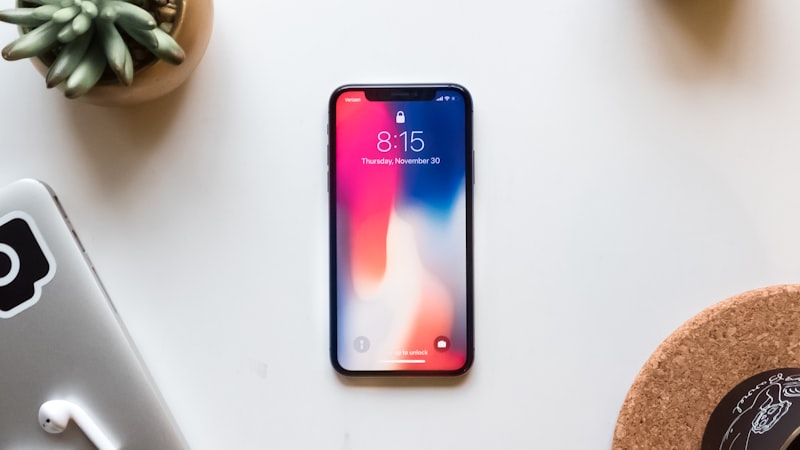
Understanding Custom Accessibility Modes
At its core, a Custom Accessibility Mode transforms the iPhone's interface into a simplified, purpose-built environment. Unlike standard Focus Modes, which primarily manage notifications and home screen visibility, Custom Accessibility Modes fundamentally alter how the user interacts with the device. They allow you to select a limited set of apps and features that remain accessible, effectively creating a walled garden within iOS. This means you can design a user experience that is highly focused, reducing cognitive load and preventing unwanted navigation or accidental app launches.
This feature is distinct from Guided Access, another valuable accessibility tool. While Guided Access locks the user into a single application for a temporary period, Custom Accessibility Modes create a persistent, switchable environment that can encompass multiple selected applications. This makes them ideal for scenarios where a consistent, simplified interface is required over longer durations or across specific workflows.
Setting Up Your First Custom Mode
Configuring a Custom Accessibility Mode involves a straightforward process, though the power lies in the deliberate choices made during setup. To begin, navigate to Settings > Accessibility > Custom Accessibility Mode. Here, you'll be guided through selecting the apps you wish to include in this custom environment. The interface simplifies dramatically, presenting only large icons for the chosen applications.
Key steps in the setup include:
- App Selection: Choose only the essential applications for the mode's intended purpose. This could be a single app for focused writing, or a small collection of communication and entertainment apps for a child.
- Feature Customisation: Beyond app access, you can fine-tune system behaviours. This includes options like whether the hardware buttons (Volume, Side button) are active, if Auto-Lock is enabled, and if specific system features like Control Center or Notification Center are accessible.
- Passcode Protection: A crucial step is setting a dedicated passcode for the Custom Accessibility Mode. This passcode is separate from your device's primary passcode and is required to exit the custom environment, ensuring the integrity of the simplified setup.
Once configured, entering and exiting a Custom Accessibility Mode is typically done via the Accessibility Shortcut (triple-clicking the Side button), providing a quick toggle between the full iOS experience and your tailored environment.
Practical Applications and Use Cases
The versatility of Custom Accessibility Modes makes them invaluable for a range of scenarios:
Enhanced Focus for Productivity
Questions readers ask
Where is Apple's supply chain on tailoring experience custom accessibility right now?
Reports out of Asia consistently cite a handful of suppliers competing on the relevant component, with Apple splitting orders rather than single-sourcing. That hedging pattern tends to mean a real product is being prepared, not just an R&D exploration.
Is tailoring experience custom accessibility realistic for the next iPhone, or further out?
Most signals point to a later cycle rather than imminent release. Component lead times for tailoring experience custom accessibility suggest Apple is still validating the supply side, and the company tends to wait until yields hit production targets before committing on stage.
What's the biggest tradeoff Apple has to swallow for tailoring experience custom accessibility?
Every Apple decision is a tradeoff, and the obvious one here is internal volume. Adding tailoring experience custom accessibility costs millimetres somewhere — usually battery capacity or camera module depth — and Apple has to decide which line item to trim.
What does tailoring experience custom accessibility actually cost — in price, weight, or battery?
Expect a premium of roughly $200–300 over the standard model, plus a small weight penalty. Battery life is the bigger variable — early prototypes typically trade an hour or two of screen-on time for the new capability, then claw it back over a generation.
In short — what's the takeaway on more from iphone open?
It comes back to whether Apple can ship tailoring experience custom accessibility without compromising the parts of the iPhone people already pay for. The detail in this section is where that case is made or broken.