Fine-Tuning iPhone Sensory Feedback: Custom Haptics, Alert Sounds, and Visual Cues for Enhanced Control
Your iPhone is a constant companion, delivering a stream of information through a symphony of sounds, vibrations, and visual alerts. While often helpful, this constant sensory input can become overwhelming, contributing to digital fatigue and distraction. Fortunately, iOS offers a robust suite of customization options that extend far beyond simple ringtone changes, allowing you to sculpt your iPhone's sensory feedback for a more focused, personalized, and less intrusive experience.
Editor's pick: iPhone Pro Max cases & grips on Amazon → As an Amazon Associate, this site earns from qualifying purchases.
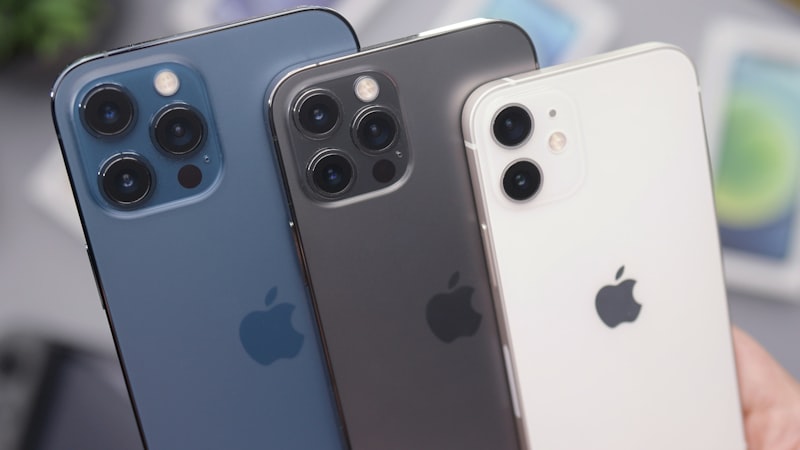
For users of the iPhone Pro Max, in particular, leveraging these fine-tuned alerts is crucial. With a larger screen capable of displaying more information, non-visual cues become even more valuable for discreetly identifying important communications without constantly glancing at the display. This guide will walk you through customizing haptics, alert sounds, and visual indicators to regain control over your digital soundscape and touch responses.
The Canvas of Customization: Alert Sounds
Beyond the standard library of ringtones and text tones, iOS provides granular control over the sounds your iPhone makes. This goes beyond merely selecting a different jingle; it's about assigning specific auditory identities to your most important interactions.
- Per-Contact Ring and Text Tones: The most straightforward customization allows you to assign unique ringtones and text tones to individual contacts. This means you can instantly identify who is calling or messaging without looking at your screen. Navigate to a contact in the Contacts app, tap 'Edit', and then select 'Ringtone' or 'Text Tone'. You can choose from built-in options or custom tones you've added.
- Per-App Notification Sounds: While not all third-party apps allow custom notification sounds, many do, particularly messaging applications. Dive into an app's settings (often found within the app itself, or under Settings > Notifications > [App Name]) to explore options for unique alert sounds. This can help differentiate between a work communication and a social ping.
- System-Wide Sound Adjustments: Don't overlook the basics in 'Settings > Sounds & Haptics'. Here, you can adjust the volume for ringers and alerts independently of media volume, enable or disable keyboard clicks, and lock sound. For critical focus, consider disabling 'Keyboard Clicks' and 'Lock Sound' to minimize unnecessary auditory feedback.
- Silence Unknown Callers: To reduce unwanted auditory interruptions, enable 'Silence Unknown Callers' in 'Settings > Phone'. Calls from numbers not in your contacts, recent outgoing calls, or Siri Suggestions will go straight to voicemail, silently.
The Power of Touch: Haptic Feedback
Haptic feedback provides a subtle, tactile dimension to your iPhone's alerts and interactions. Customizing haptics can offer a discreet yet effective way to differentiate between various notifications.
Creating Custom Vibration Patterns
This is where haptic customization truly shines. You can design unique vibration patterns that become a signature for specific contacts or alert types, providing distinct tactile cues.
- Go to 'Settings > Sounds & Haptics > Ringtone' (or 'Text Tone').
- Scroll to the top and tap 'Vibration'.
- Under the 'Custom' section, tap 'Create New Vibration'.
- Tap the screen to record your custom vibration pattern. You can tap once for a short pulse, hold for a longer buzz, or create a rhythm.
- Tap 'Stop' when finished, then 'Play' to preview.
- Tap 'Save', and give your custom vibration a name.
- Once saved, this custom vibration will appear in your list and can be assigned to contacts or used as a default.
This feature is invaluable for accessibility, allowing users to 'feel' who is calling or messaging without needing visual or auditory cues. It's also perfect for situations where sounds are inappropriate, but a discreet alert is still necessary.
System Haptics and Accessibility
- System Haptics: In 'Settings > Sounds & Haptics', you can toggle 'System Haptics' on or off. This controls the subtle vibrations you feel when performing system gestures, like scrolling through lists or using 3D Touch/Haptic Touch. Disabling these can contribute to a quieter, less 'busy' sensory experience.
- Accessibility Haptics: Explore 'Settings > Accessibility > Touch > Haptic Touch' for sensitivity adjustments. Additionally, under 'Vibration' in 'Accessibility > Touch', you can completely disable all vibrations on your iPhone, which can be useful for specific needs.
Visual Cues for the Discerning User
While often primary, visual alerts can also be tailored for specific scenarios, especially when combined with customized sounds and haptics.
- LED Flash for Alerts: Located in 'Settings > Accessibility > Audio/Visual', 'LED Flash for Alerts' causes the camera's LED flash to blink when you receive an alert. You can choose to enable this only when your iPhone is locked and/or in Silent Mode. This is a powerful, non-auditory, and non-haptic alert, particularly useful in noisy environments or when your iPhone is out of reach but still in your line of sight.
- Customizing Alert Styles: Within 'Settings > Notifications', you can specify how alerts appear for each app—as Banners (which disappear after a short time), Alerts (which require action), or Badges (the red count on app icons). Choose 'Banners' for less critical alerts to minimize interruption.
Integrating for a Cohesive Experience
The true power of these customization options comes from their integration. Consider your daily routines and information hierarchy:
- Work Mode: Assign a distinct, short haptic pattern and a subtle sound for work-related communications. Use LED Flash for critical alerts when in meetings.
- Personal Mode: Leverage unique ringtones and custom vibrations for family and close friends, ensuring important calls are never missed.
- Silent Environments: Rely heavily on custom haptics and LED flash, allowing you to stay connected without disturbing others.
By thoughtfully combining these settings, you transform your iPhone from a generic notification hub into a finely tuned instrument that communicates with you on your terms. This deeper level of personalization not only reduces digital noise but also enhances your ability to focus on what truly matters, making your iPhone an even more effective tool in your daily life.