Crafting Your Perfect iPhone Pro Max Display: Advanced Visual Accessibility for Tailored Workflows
The iPhone Pro Max models offer an expansive digital canvas, providing a superior experience for media consumption, intricate app interactions, and professional workflows. While the sheer size is a significant advantage, unlocking its full potential often involves diving into the device's robust accessibility features. These settings, often perceived as solely for users with specific impairments, are in fact powerful tools for anyone seeking to deeply customise their visual environment for comfort, efficiency, and tailored content consumption.
Editor's pick: iPhone Pro Max cases & grips on Amazon → As an Amazon Associate, this site earns from qualifying purchases.
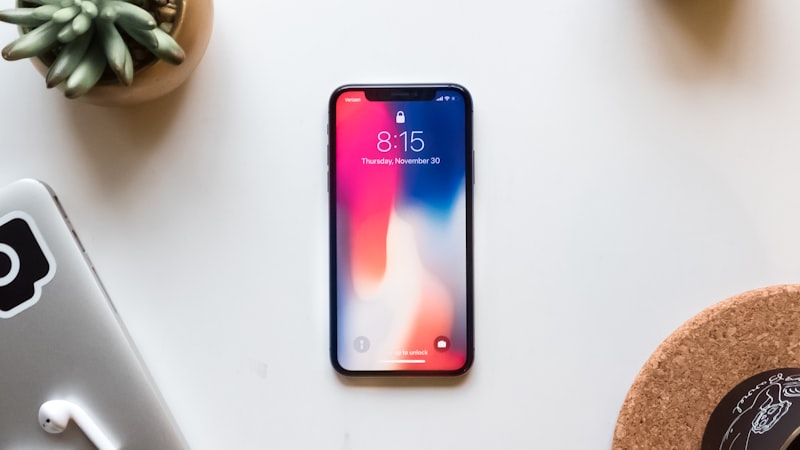
Beyond merely increasing font size, the iPhone Pro Max allows for granular control over how information is presented on its large, high-resolution display. This level of customisation transforms the device from a generic smartphone into a highly ergonomic and personalised tool, especially beneficial for extended reading sessions, detailed document review, or any task demanding focused visual attention.
Customising Text and Layout for Optimal Readability
One of the most fundamental aspects of visual comfort is text readability. The iPhone Pro Max offers several avenues to refine this experience:
- Dynamic Type and Bold Text: Accessible via Settings > Accessibility > Display & Text Size, Dynamic Type allows you to adjust the system-wide text size. Many third-party apps also respect this setting, ensuring a consistent reading experience. For an added boost in clarity, especially for headings or critical information, enabling Bold Text can significantly improve legibility without drastically altering the layout.
- Display Zoom: This feature, found under Settings > Display & Brightness > Display Zoom, offers a powerful way to reconfigure the entire user interface. Opting for 'Zoomed' view instead of 'Standard' effectively enlarges all on-screen elements, including app icons, buttons, and text, by adjusting the display resolution. For users who find the 'Standard' view's information density too high, 'Zoomed' provides a more spacious and less cluttered environment, making interactions more deliberate and content easier to parse. This is particularly effective on the Pro Max's large screen, preventing elements from becoming excessively large while still offering a clearer view.
- Per-App Accessibility Settings: For a truly tailored experience, iOS allows you to apply specific accessibility settings on a per-app basis. Under Settings > Accessibility > Per-App Settings, you can choose an application (e.g., a news reader, a document editor, or a specific browser) and adjust its text size, bold text, contrast, and more, independently of your system-wide settings. This means you can have a large, high-contrast text setting for your preferred e-reader, while maintaining a standard, more information-dense layout for your email client.
Optimising Visual Comfort and Contrast
Beyond text and layout, iOS provides tools to fine-tune the display's visual characteristics, which can dramatically reduce eye strain and improve focus:
- Reduce White Point: Prolonged exposure to bright white backgrounds can cause eye fatigue. 'Reduce White Point' (Settings > Accessibility > Display & Text Size) lowers the intensity of bright colours, making the screen less harsh without significantly altering colour accuracy. This is invaluable for extended reading or document review, especially in low-light environments.
- Colour Filters: For users with colour vision deficiencies or those who prefer specific colour tints to reduce eye strain, Colour Filters (Settings > Accessibility > Display & Text Size > Colour Filters) offer powerful adjustments. Options include Greyscale, Red/Green, Green/Blue, and a fully customisable Colour Tint. Greyscale can be particularly useful for focusing on text without the distraction of colours, while a subtle Colour Tint (e.g., a warm sepia) can mimic the feel of reading on paper, significantly enhancing comfort during long sessions.
- Smart Invert vs. Classic Invert: While Dark Mode is now a standard feature, 'Smart Invert' (Settings > Accessibility > Display & Text Size > Smart Invert) offers a unique alternative. Unlike 'Classic Invert' which simply reverses all colours, Smart Invert intelligently inverts most colours on the display while leaving images, media, and some apps with dark colour styles unchanged. This can provide a dark background experience similar to Dark Mode, but with broader application across apps that may not fully support Dark Mode natively.
- Increase Contrast and Reduce Transparency: These settings (within Display & Text Size) can make the user interface elements more distinct. 'Increase Contrast' makes colours on the screen more vibrant and defined, while 'Reduce Transparency' removes the translucent effects often seen in iOS (like in Control Center or Notification Center), replacing them with solid colours. Both contribute to a clearer, less visually distracting interface.
Integrating Custom Settings into Daily Pro Max Workflows
The true power of these accessibility features lies in their integration into daily Pro Max workflows. Consider these scenarios:
- Document Review and Editing: For professionals reviewing lengthy reports or spreadsheets, a combination of 'Zoomed' Display Zoom, increased Dynamic Type size, and 'Reduce White Point' can create an optimal reading environment, minimising scrolling and enhancing focus. Per-App Settings can ensure this configuration only applies to your document apps.
- Visual Content Creation and Analysis: Designers or analysts who scrutinise detailed images or data visualisations might benefit from specific Colour Filters to highlight nuances, or 'Increase Contrast' for sharper distinctions, without affecting their communication apps.
- Personalised Reading Experience: For avid readers, setting a warm Colour Tint for e-reading apps combined with bold, larger text can emulate the comfort of a dedicated e-reader, reducing digital eye strain during extended periods.
These granular controls are not just about meeting accessibility needs; they are about empowering every iPhone Pro Max user to create a display environment that perfectly suits their individual preferences and the demands of their specific tasks. By taking the time to explore and configure these settings, you can transform your Pro Max into an even more powerful, comfortable, and productive tool, uniquely tailored to how you see the world.