Optimizing iPhone Pro Max Workflows with Advanced Focus Modes and Custom Home Screens
The iPhone Pro Max, with its expansive display, offers unparalleled potential for productivity and creative work. However, simply having a large screen isn't enough; true optimization comes from tailoring your device to your specific workflows. For many, this means moving beyond a static Home Screen and leveraging the sophisticated power of Focus Modes combined with custom Home Screen layouts. This approach transforms your iPhone into a dynamic tool that adapts to your current task, minimizing distractions and maximizing efficiency.
Editor's pick: iPhone Pro Max cases & grips on Amazon → As an Amazon Associate, this site earns from qualifying purchases.
Beyond Basic Focus: Crafting Context-Aware Environments
Most iPhone users are familiar with Focus Modes for basic "Do Not Disturb" functionality. The true power, however, lies in creating highly specific, context-aware environments. Instead of a generic "Work" Focus, consider creating modes like "Deep Work" for uninterrupted concentration, "Creative Flow" for artistic endeavors, or "Travel Planning" for organizing your next trip.
- Custom Schedules and Automation: Set Focus Modes to activate automatically based on time, location, or when opening a specific app. For instance, "Deep Work" could engage when you arrive at your office, or "Reading Mode" when you open your preferred e-reader app.
- Granular Notifications: Configure each Focus Mode to allow notifications only from essential contacts or critical apps. This ensures you remain connected to what matters while eliminating irrelevant pings.
- Linked Watch Faces: For Apple Watch users, Focus Modes can even change your watch face, further reinforcing the shift in context.
The Strategic Home Screen: Your Dynamic Workspace
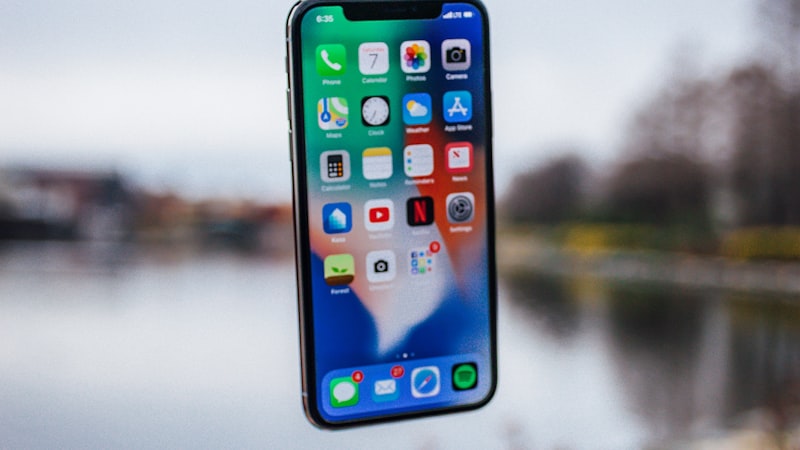
The game-changer comes when you pair each custom Focus Mode with a dedicated Home Screen page. This means that when you activate "Deep Work," your iPhone automatically switches to a Home Screen populated only with the apps and widgets essential for that task. All other distractions vanish, accessible only through the App Library.
- Contextual App Layouts: For "Deep Work," your Home Screen might feature project management apps, a note-taking tool, and a browser for research. For "Creative Flow," you'd see photo editors, drawing apps, and perhaps a music streaming widget.
- Dynamic Widgets for Instant Information: Widgets are powerful in this setup. A "Work" Focus might display a calendar widget showing upcoming meetings or a task list. A "Travel Planning" Focus could feature a weather widget for your destination, flight tracking, and currency conversion. The iPhone Pro Max's larger display offers ample room to arrange these widgets effectively, making information instantly accessible without opening apps.
- App Library as Your Archive: The App Library ensures that while your focused Home Screens are minimalist, all your other applications are still easily accessible with a swipe, keeping your main workspace clutter-free.
Leveraging the Pro Max Advantage
The iPhone Pro Max's expansive screen real estate significantly enhances this workflow. More space means:
- Richer Widget Experiences: Larger widgets can display more information, making them even more valuable for at-a-glance updates.
- Clearer App Separation: You can spread out your essential apps across the larger grid, reducing visual clutter and making it easier to tap the right icon quickly.
- Enhanced Visual Focus: A dedicated, uncluttered Home Screen on a large display feels less overwhelming and more conducive to concentration. This is particularly beneficial for tasks requiring extended focus, allowing you to immerse yourself in the task at hand without the visual noise of irrelevant apps.
For those who frequently adjust their display settings based on content, such as enabling Dark Mode for reading or adjusting font sizes, these preferences can also be integrated into custom Focus Modes. For example, a "Reading Mode" could automatically switch to a darker theme and increase text size, optimizing the large display for comfortable consumption, a topic we explore in depth at iPhone View.
Practical Workflow Examples
Consider these examples to inspire your own custom setups:
- "Deep Work" Focus:
- Home Screen: Project management app (e.g., Things, Todoist), a dedicated note-taking app (e.g., Drafts, Obsidian), Safari for research, and a timer widget (e.g., Focus Keeper).
- Notifications: Only calls from favorites and messages from immediate colleagues.
- "Creative Flow" Focus:
- Home Screen: Photo/video editing apps (e.g., Lightroom Mobile, LumaFusion), a sketching app (e.g., Procreate Pocket), an inspiration board app (e.g., Pinterest), and a music control widget.
- Notifications: Silenced entirely, or only from collaborative creative tools.
- "Travel Planning" Focus:
- Home Screen: Maps app, airline/hotel booking apps, a currency converter, a weather app, and a shared notes app for itinerary.
- Notifications: Only travel alerts and communication from travel companions.
Seamless Transitions and Ongoing Refinement
Switching between these focused environments is effortless. You can manually activate a Focus Mode from Control Center, or let automation handle it. The key is to view your iPhone's Home Screen not as a static grid, but as a fluid canvas that reconfigures itself to serve your immediate needs.
As your professional and personal life evolves, so too should your Focus Modes and Home Screens. Regularly review and refine your setups. Are there apps you rarely use on a specific Home Screen? Remove them. Is there a new workflow emerging? Create a new Focus Mode for it. This iterative process ensures your iPhone Pro Max remains a perfectly tuned instrument for your productivity.
Conclusion
Mastering Focus Modes and custom Home Screens on your iPhone Pro Max offers a profound shift in how you interact with your device. It’s about creating intentional digital spaces that support your goals, reduce cognitive load, and allow you to fully leverage the power of Apple's flagship smartphone. By taking control of your digital environment, you unlock a new level of productivity and mental clarity, making your Pro Max truly work for you.