Maximizing Your iPhone Pro Max: Advanced External Display Workflows
The iPhone Pro Max has long been celebrated for its expansive Super Retina XDR display, offering a premium experience for media consumption, content creation, and general productivity. However, its true potential as a portable workstation often goes overlooked: its robust support for external displays. For users seeking to push the boundaries of their iPhone's capabilities, connecting to an external monitor transforms the device into a powerful, versatile hub, dramatically enhancing workflows for professionals and enthusiasts alike.
Editor's pick: iPhone Pro Max cases & grips on Amazon → As an Amazon Associate, this site earns from qualifying purchases.
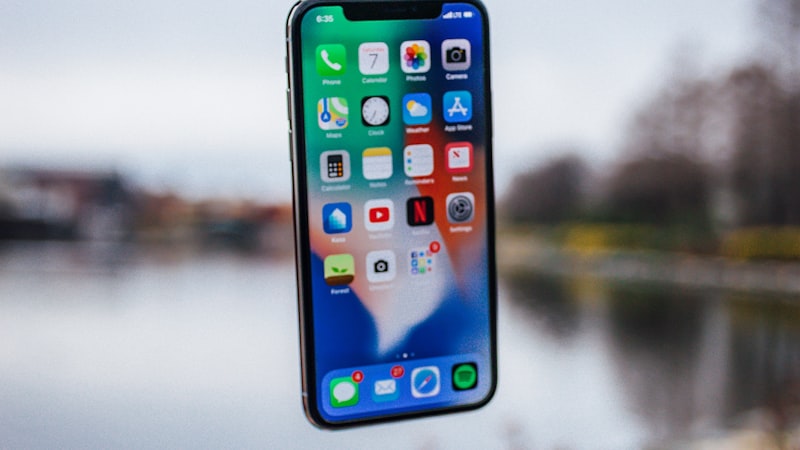
The Power of External Displays for iPhone Pro Max
Unlike simply mirroring your iPhone's screen, modern iOS on Pro Max models intelligently adapts its interface when connected to an external display. This capability, especially when combined with features like Stage Manager, allows for a desktop-like multitasking experience, providing a larger canvas for apps and a more comfortable working environment. This is particularly valuable for the iPhone Open audience, who are constantly seeking ways to optimize their devices for advanced customisation and big-screen productivity.
Connectivity Essentials: Making the Right Link
Connecting your iPhone Pro Max to an external display is straightforward, primarily utilizing the device's USB-C port. For direct connection to modern monitors, a single USB-C to USB-C cable often suffices, supporting both video and power delivery. For displays with HDMI or DisplayPort inputs, a compatible USB-C adapter or hub is necessary. When selecting a hub, prioritize models that offer additional ports for charging, external storage, and peripherals like keyboards and mice, transforming your setup into a comprehensive workstation.
Consider the display's resolution and refresh rate. While the iPhone Pro Max can output to 4K displays, ensuring your chosen monitor matches your workflow needs is key. For graphic designers or video editors, color accuracy is paramount. As we explored in our analysis of display technology at iPhone View, choosing a monitor with accurate color calibration (e.g., sRGB or DCI-P3 coverage) is crucial for professional work.
Transformative Workflows: Beyond the Handheld
Creative Professionals
For photographers and videographers, the external display transforms the iPhone Pro Max into a mobile editing suite. Imagine reviewing and editing 4K HDR footage shot on your iPhone directly on a large, color-accurate monitor. Apps like LumaFusion, DaVinci Resolve for iPad (which runs beautifully on Pro Max via external display), and Lightroom Mobile leverage the extra screen real estate, allowing for precise adjustments, timeline scrubbing, and detailed composition work that's simply not feasible on the iPhone's built-in display alone. The ability to see your work on a larger canvas significantly enhances the creative process, making the Pro Max a viable alternative for on-the-go production.
Enhanced Productivity
Business users and those focused on document creation will find external display support invaluable. Draft lengthy emails, refine presentations in Keynote or PowerPoint, or manage complex spreadsheets in Numbers with the comfort of a full-sized keyboard and mouse. Stage Manager, in particular, shines here, allowing you to arrange multiple app windows on the external display as you would on a desktop computer. This setup facilitates seamless multitasking, enabling you to reference documents, participate in video calls, and take notes simultaneously without constant app switching.
Advanced Web Browsing and Development
For web developers or power users exploring the capabilities of third-party browser engines available in the EU, an external display provides an ideal environment. Test web layouts on a larger screen, inspect elements with greater precision, or manage multiple browser tabs across different engines (e.g., Safari, Chrome, Firefox) side-by-side. This greatly streamlines debugging and development workflows, especially when combined with a physical keyboard and trackpad for efficient input.
Optimizing Your External Display Setup
- Peripherals are Key: A Bluetooth keyboard and mouse or trackpad are essential for a true desktop-like experience. Apple's Magic Keyboard and Magic Trackpad offer seamless integration, but many third-party options also work well.
- Power Delivery: Ensure your USB-C hub or adapter supports power pass-through to keep your iPhone charged during extended use. This prevents battery drain and ensures uninterrupted productivity.
- App Compatibility: While many apps are optimized for external displays, some might still primarily mirror the iPhone's aspect ratio. Experiment with your most-used apps to understand how they behave and adapt your workflow accordingly. Apps designed for iPad, especially those with robust multitasking features, often perform exceptionally well on external displays.
- Accessibility Integration: Leverage iOS accessibility features with your external display. For instance, Voice Control can be used hands-free for navigating apps on the larger screen, and custom AssistiveTouch menus can be configured for specific external display workflows, further enhancing your efficiency.
Conclusion: The Pro Max as Your Mobile Workstation
The iPhone Pro Max, when paired with an external display, transcends its role as a mere smartphone. It becomes a compact, powerful computing platform capable of handling demanding professional tasks, offering unparalleled flexibility for those who need a full-featured workstation on the go. By understanding the connectivity options and optimizing your setup, you can unlock a new dimension of productivity and creative potential, truly maximizing your iPhone Pro Max experience in line with the advanced customisation and workflow demands of the iPhone Open readership.