Optimizing iPhone Pro Max for Professional Writing and Editing Workflows
The iPhone Pro Max, with its expansive Super Retina XDR display, has transcended its role as merely a communication device to become a genuinely capable mobile workstation. For professionals whose daily tasks involve extensive writing, editing, and document review, leveraging the Pro Max can significantly enhance productivity and flexibility. This guide explores how to optimize your device for a streamlined, efficient writing and editing workflow, transforming your iPhone into a powerful tool for content creation on the go.
Editor's pick: iPhone Pro Max cases & grips on Amazon → As an Amazon Associate, this site earns from qualifying purchases.
The Advantage of the Large Display
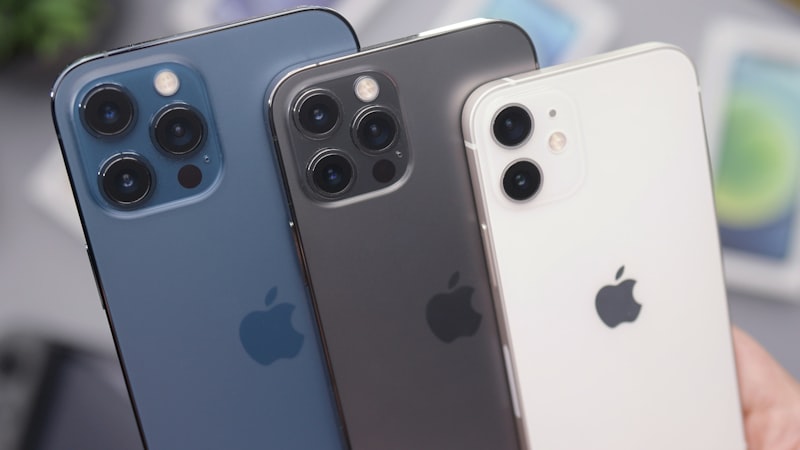
The 6.7-inch display on the iPhone Pro Max is a game-changer for text-heavy tasks. It offers substantially more screen real estate than standard iPhone models, allowing for better readability of long documents, more comfortable typing, and the ability to view more content at once without constant scrolling. This larger canvas minimizes eye strain during extended sessions and provides a clearer overview of your work, whether you are drafting an article, reviewing a contract, or annotating a PDF.
For extended writing and editing sessions, display comfort is paramount. As we explored in our analysis of display technology at iPhone View, adjusting settings like True Tone and Night Shift, alongside choosing optimal font sizes, can significantly reduce eye strain. Fine-tuning these display characteristics ensures that the visual experience supports long periods of focused work without discomfort.
Optimizing Text Input and Interaction
Efficient text input is foundational to any writing workflow. The Pro Max's larger screen naturally accommodates a more comfortable on-screen keyboard, reducing errors and increasing typing speed. However, several strategies can further enhance this experience:
- Third-Party Keyboards: Explore options like Gboard or SwiftKey, which often provide advanced features such as glide typing, custom themes, and integrated search, catering to different typing styles.
- Dictation: iOS Dictation has become remarkably accurate and can be a powerful tool for drafting initial thoughts or transcribing spoken notes. Enabling 'On-Device Dictation' through Settings > General > Keyboard offers faster processing and enhanced privacy.
- Physical Keyboards: For serious long-form writing, pairing your Pro Max with a compact Bluetooth keyboard can mimic a laptop experience, providing tactile feedback and greater speed without carrying a larger device.
Essential Apps for Professional Workflows
The App Store hosts a vast ecosystem of applications tailored for writers and editors:
- Word Processors: Apple Pages, Microsoft Word, and Google Docs offer robust features for document creation and collaboration, seamlessly integrating across devices.
- Markdown Editors: Apps like Ulysses or iA Writer are perfect for distraction-free writing, especially for journalists, bloggers, or academics who prefer Markdown for formatting.
- Note-Taking & Research: Notion, Obsidian, Bear, and Evernote can serve as powerful tools for organizing research, outlining projects, and capturing ideas on the fly.
- PDF Annotation: Apps like GoodReader or PDF Expert transform your Pro Max into an effective tool for reviewing and marking up documents, invaluable for legal, academic, or editorial professionals.
Enhancing Workflow with Accessibility Features
Accessibility features on iOS are not just for users with specific needs; they can be powerful enhancements for any professional looking to optimize their workflow:
- Text Size and Display Zoom: Customizing text size in Settings > Accessibility > Display & Text Size allows you to find the perfect reading comfort for long documents. Display Zoom can further adjust the screen layout for a more comfortable view.
- Speak Screen: Found under Settings > Accessibility > Spoken Content, 'Speak Screen' can read aloud the content of your screen. This is an invaluable proofreading tool, helping to catch errors that the eye might miss by engaging a different sensory input.
- Voice Control: For hands-free editing, Voice Control (Settings > Accessibility > Voice Control) allows you to navigate the interface, dictate text, and even apply specific edits using voice commands. This can be particularly useful for repetitive tasks or when your hands are occupied.
Streamlining with Customization and Automation
Tailoring your iPhone's environment to your writing needs can significantly boost focus:
- Focus Modes: Set up a custom 'Writing' Focus Mode to silence notifications from non-essential apps, allow calls only from critical contacts, and curate a specific Home Screen layout with your writing apps front and center. This minimizes distractions and creates a dedicated workspace.
- Shortcuts: While advanced shortcuts for niche workflows are well-documented, simpler automations can also be powerful. Consider shortcuts for quickly opening your primary writing app, starting a specific timer for focused work, or converting text formats.
Seamless Cross-Device Integration
Apple's ecosystem provides excellent continuity features that extend your writing workflow beyond the iPhone:
- Handoff: Start writing on your iPhone and seamlessly pick up exactly where you left off on your iPad or Mac, provided you're using compatible apps like Pages, Mail, or Safari.
- Universal Clipboard: Copy text on your iPhone and paste it instantly on your Mac or iPad, facilitating quick transfers of snippets, research notes, or references.
By thoughtfully configuring your iPhone Pro Max with the right apps, display settings, and leveraging its powerful accessibility features, you can transform it into a highly effective device for professional writing and editing. It’s a testament to the iPhone’s versatility that it can serve as a comprehensive tool, allowing you to remain productive and creative wherever your work takes you.