Unlocking Advanced iPhone Automation: A Practical Guide to NFC Tag Workflows
The iPhone has long been a powerhouse for personal customisation and automation, allowing users to tailor their device experience through Shortcuts, Focus Modes, and Accessibility settings. However, many users overlook one of the most versatile physical triggers for these automations: Near Field Communication (NFC) tags. These tiny, inexpensive tags can unlock a new dimension of hands-free, context-aware workflows, seamlessly integrating your digital life with your physical environment.
Editor's pick: iPhone Pro Max cases & grips on Amazon → As an Amazon Associate, this site earns from qualifying purchases.
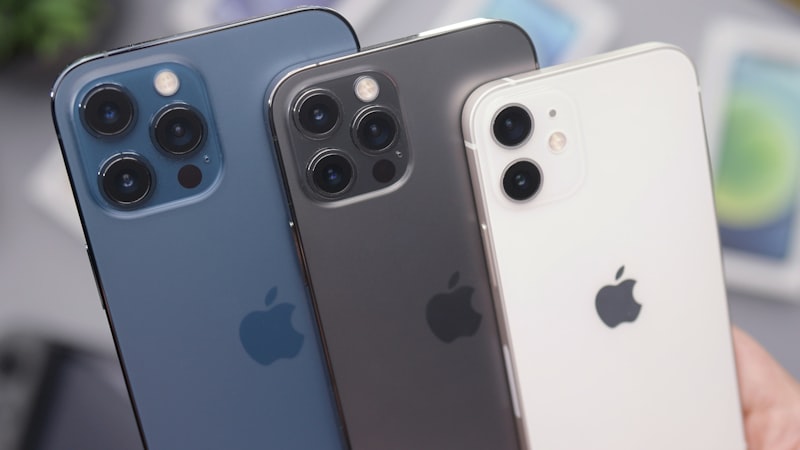
As of 2026, iPhones from the XR/XS generation and newer support background NFC tag reading, meaning you don't even need to open a specific app to scan them. This capability transforms mundane tasks into simple taps, drastically improving efficiency and accessibility.
What Are NFC Tags?
NFC tags are small, passive microchips that can store small amounts of data. When an NFC-enabled device, like your iPhone, comes into close proximity (typically within a few centimeters), it can read the data stored on the tag. While commonly associated with Apple Pay for contactless payments, NFC tags can also be programmed to trigger specific actions or retrieve information. They require no power source of their own, drawing energy wirelessly from the scanning device.
For automation purposes, the data stored on an NFC tag is usually a unique identifier or a simple URL. Your iPhone's Shortcuts app interprets this identifier as a trigger for a predefined automation, executing a sequence of actions without any further input from you.
Setting Up Your First NFC Automation
Creating an NFC-triggered automation is straightforward using the Shortcuts app:
- Open the Shortcuts app on your iPhone.
- Tap the Automation tab at the bottom.
- Tap the + icon in the top right corner, then select New Automation (or Create Personal Automation).
- Scroll down and select NFC from the list of triggers.
- Tap Scan and then hold your iPhone near the NFC tag you wish to use. The tag will be identified.
- Give your tag a descriptive name (e.g.,
Questions readers ask
Will nfc tag automation guide replace the current model or sit alongside it?
The likeliest path is co-existence — a new variant alongside the existing lineup, not a replacement. Apple's segmentation playbook keeps the older model around at a lower price for at least one cycle to absorb the gap.
How does nfc tag automation guide stack up against what Samsung or Google already ship?
Android OEMs reached this corner of the market first, but they did so with looser tolerances on durability and software polish. Apple's bet is that arriving second with a tighter integration story wins more buyers than arriving first.
Have patents or job listings hinted at nfc tag automation guide?
Yes — recent USPTO filings reference adjacent mechanisms, and Apple has been quietly posting roles in the relevant hardware and software teams. None of that guarantees a ship date, but it confirms the project is actively staffed.
Who is the realistic day-one buyer for nfc tag automation guide?
Enthusiasts and developers buy the first run. Mainstream adoption tracks the second-generation revision, once the rough edges are sanded down and the price comes in roughly $100 lower at the same tier.
In short — what's the takeaway on more from iphone open?
It comes back to whether Apple can ship nfc tag automation guide without compromising the parts of the iPhone people already pay for. The detail in this section is where that case is made or broken.