Mastering iPhone Back Tap: Advanced Customization for Enhanced Productivity
Introduction: The Subtle Power of Back Tap
The iPhone offers a wealth of customization options, often hidden in plain sight. Among the most versatile is Back Tap, an accessibility feature that transcends its initial purpose to become a potent tool for productivity and automation. Introduced in iOS 14, Back Tap allows users to trigger specific actions by simply double or triple tapping the back of their iPhone. While seemingly minor, mastering this feature can significantly streamline daily interactions, especially for power users navigating the larger display of an iPhone Pro Max.
Editor's pick: iPhone Pro Max cases & grips on Amazon → As an Amazon Associate, this site earns from qualifying purchases.
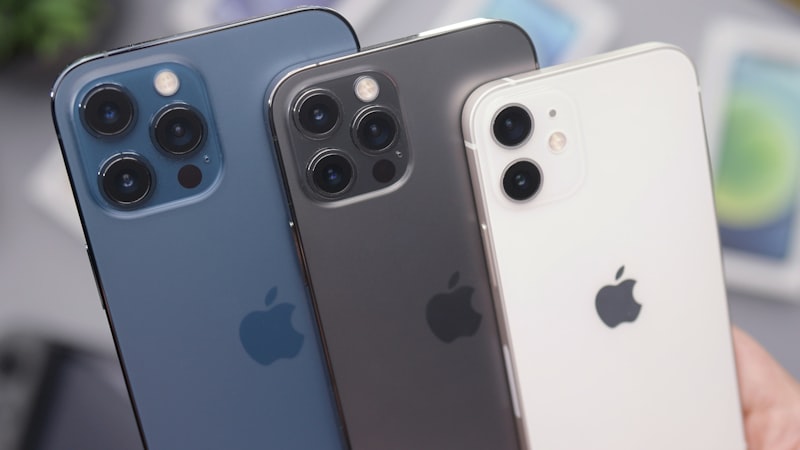
Back Tap Fundamentals: Beyond Basic Taps
Configuring Back Tap is straightforward: navigate to Settings > Accessibility > Touch > Back Tap. Here, you'll find options for both Double Tap and Triple Tap, each allowing you to assign a different action. The available actions range from system functions like locking the screen, taking a screenshot, or invoking Siri, to accessibility shortcuts, and crucially, any custom Shortcut you've created.
The real power of Back Tap lies in its integration with the Shortcuts app. Instead of being limited to a predefined set of actions, users can create complex, multi-step automations and assign them to a simple tap gesture. This transforms Back Tap from a convenience feature into a personalized command center, accessible with a physical interaction rather than on-screen navigation.
Tailoring Back Tap for iPhone Pro Max Workflows
The expansive screen of the iPhone Pro Max presents both opportunities and challenges. While offering ample space for multitasking, reaching certain on-screen elements can sometimes require a stretch. Back Tap offers an elegant solution.
Instant App Launching and Context Switching
For users who frequently switch between specific applications, Back Tap can be a game-changer. Imagine assigning a Double Tap to instantly open your primary email client and a Triple Tap to launch your preferred web browser. This allows for rapid context switching without needing to return to the Home Screen or use the App Switcher, keeping your focus on the task at hand. For complex setups, a custom shortcut can even check your current Focus Mode and open different apps accordingly.
Enhancing Accessibility and One-Handed Use
Back Tap is inherently an accessibility feature, and its utility in this domain is substantial. On a larger device like the Pro Max, features like Reachability, which brings the top half of the screen down for easier one-handed access, become invaluable. Assigning Reachability to a Double Tap means you can activate it instantly without fumbling for the gesture.
Beyond Reachability, Back Tap can trigger other accessibility shortcuts. For instance, you could assign Triple Tap to activate Magnifier, providing immediate access to a powerful visual aid. As we've explored on iPhone View (https://iphoneview.com) in our guides on display calibration and reading-comfort settings, customising your iPhone for personal needs is paramount. Back Tap extends this philosophy to physical interaction, offering a discreet yet powerful method for triggering accessibility features such as Zoom or Magnifier, making the iPhone more usable for everyone.
Advanced Automation with Custom Shortcuts
The true depth of Back Tap integration emerges when coupled with the Shortcuts app. This combination allows for highly personalized and contextual automation.
Contextual Productivity Triggers
Consider a shortcut designed for a specific work environment. You could create a shortcut that, when triggered by a Back Tap, checks your current location. If you're at your office, it could then enable a specific Work Focus, open your team communication app, and adjust your media volume. If you're at home, the same tap could trigger a different set of actions, such as dimming smart lights and starting a relaxation playlist.
Media Control and Quick Settings
For quick adjustments, Back Tap can be programmed to toggle system settings or control media playback. A Double Tap could toggle Low Power Mode, while a Triple Tap could play or pause music, or even skip tracks. This eliminates the need to open Control Center or specific apps for routine adjustments, enhancing efficiency during tasks where visual interaction might be disruptive.
Optimizing Back Tap Sensitivity and Reliability
To ensure Back Tap works consistently, some fine-tuning might be necessary. The sensitivity of the taps can sometimes be influenced by the iPhone's case. While most modern cases are designed to accommodate this feature, very thick or rigid cases might require a slightly firmer tap. Experiment with the force of your taps to find what works best for your setup. It's also worth noting that Back Tap relies on the accelerometer and gyroscope, so ensuring your iPhone is held relatively steady during the tap can improve recognition.
Conclusion: A Tap Away from Greater Efficiency
Back Tap is more than just an accessibility feature; it's a gateway to a more efficient and personalized iPhone experience. By leveraging its ability to trigger custom shortcuts and system actions, users can transform their device into a highly responsive tool tailored to their specific needs and workflows. Especially on the iPhone Pro Max, where quick access and one-handed operation are often prioritized, mastering Back Tap can significantly elevate your daily productivity and interaction with your device. Experiment with different assignments, explore the vast possibilities of Shortcuts, and discover how two or three taps can unlock a new level of iPhone mastery.